

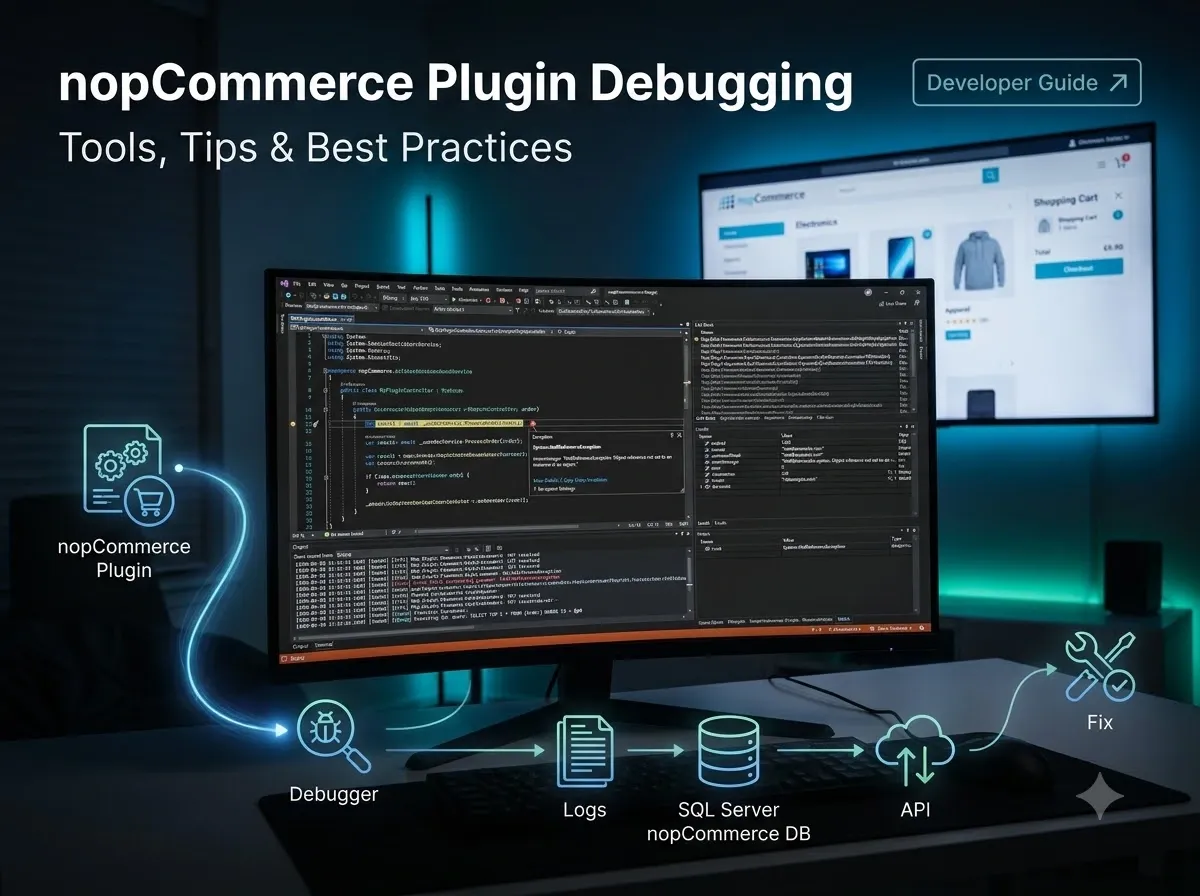
If you've spent any real time building on nopCommerce, you already know that plugin bugs rarely show up where you expect them. A feature works perfectly on your local machine, passes a quick manual test, and then breaks the moment it hits staging or production. Nothing changed in the code - or so it seems. The difference is usually hiding in configuration, dependency registration, database state, or an external API call that behaves differently outside your dev environment.
This is why nopCommerce plugin debugging is a skill on its own, separate from general C# or ASP.NET Core debugging. A nopCommerce plugin doesn't run in isolation. It's loaded through a plugin engine, wired into the dependency injection container, hooked into event consumers, rendered through widget zones, and often talking to background tasks and third-party APIs at the same time. Any one of those layers can be where the actual problem lives, even when the stack trace points somewhere else entirely.
Developers who are new to the platform often fall into a trial-and-error pattern: change something, redeploy, check if it worked, repeat. It's slow, it's frustrating, and it tends to introduce new bugs while chasing the original one. A systematic debugging process — reproduce, inspect, isolate, fix, verify - is almost always faster, even though it feels slower in the first ten minutes.
This guide walks through how to debug nopCommerce plugins the way an experienced nopCommerce developer actually does: using Visual Studio, structured logging, database inspection, and API testing tools, without touching nopCommerce core code unless it's genuinely necessary.
What Is nopCommerce Plugin Debugging?
Debugging and troubleshooting get used interchangeably, but they're not quite the same thing. Troubleshooting is the broader process of narrowing down where a problem originates. Debugging is the more specific, code-level activity of stepping through execution, inspecting variables, and confirming exactly why the application is behaving the way it is.
nopCommerce plugin debugging combines both. It means:
Reproducing the issue reliably, so you're not chasing a moving target
Identifying which layer of the plugin is failing (controller, service, repository, event consumer, view)
Inspecting the application's actual state at the point of failure, not just assuming what it should be
Isolating the root cause instead of the first symptom you happen to notice
Applying a fix that addresses the cause, not a workaround that hides it
Testing the fix under the same conditions that produced the original bug
A simple mental model for this process looks like:
Reproduce> Identify> Inspect> Isolate> Fix> Test> Monitor
Skipping straight to Fix without going through Reproduce, Identify, and Inspect is the single biggest reason developers end up patching symptoms instead of solving problems and why the same bug tends to resurface a few weeks later in a slightly different form.
Why nopCommerce Plugin Debugging Can Be Challenging
nopCommerce plugins are not standalone applications. They're assemblies that get loaded into a much larger MVC application at runtime, and that architecture is exactly what makes debugging harder than in a typical .NET project.
A few reasons plugin bugs are harder to pin down:
Dependency Injection :- Plugins register their services, repositories, and settings through nopCommerce's DI container. If a service isn't registered correctly, or is registered with the wrong lifetime, you won't see a compile error. You'll see a runtime failure, often with a stack trace that doesn't obviously point at the registration itself.
Plugin lifecycle :- Install, uninstall, and update events each run different code paths. A plugin that installs cleanly can still fail later if Install() and Uninstall() aren't handling settings, permissions, and schema changes consistently.
Event consumers :- nopCommerce is heavily event-driven. Plugins commonly listen for events like order placement, customer registration, or product updates. If a consumer isn't registered, or throws silently, the plugin logic simply never runs - with no obvious error on screen.
Controllers, services, and repositories :- Following nopCommerce's layered architecture means a bug can originate in any one of these layers while manifesting in another. A NullReferenceException in a controller might actually be caused by a repository returning null from a bad query.
Entity Framework Core and migrations :- Schema mismatches, missing migrations, or incorrect entity configuration can cause failures that look like application bugs but are really database-layer issues.
Background tasks :- Scheduled tasks run outside the normal request pipeline, which means they're easy to forget about when debugging and harder to attach a debugger to without extra setup.
External APIs, configuration, and caching :- A plugin that depends on a third-party API introduces failure points completely outside your codebase: timeouts, rate limits, and credential differences between environments.
Version compatibility and third-party plugins :- Interactions between your plugin and other installed plugins, or subtle breaking changes between nopCommerce versions, can produce bugs that have nothing to do with your own code changes.
Understanding this architecture is what lets you debug efficiently. Instead of guessing, you can ask which layer is most likely responsible for this symptom? and go straight there.
The Most Common nopCommerce Plugin Problems
Plugin Does Not Load
Typical cause: A missing or malformed plugin.json descriptor, an assembly that failed to build, or a plugin folder placed incorrectly under /Plugins.
What to inspect: The plugin descriptor file, the build output, and the nopCommerce startup logs.
Debugging approach: Confirm the plugin assembly is present in the expected output folder and that the descriptor's system name matches the plugin class. Check startup logs for assembly load errors before assuming the plugin code itself is broken.
Plugin Installation Failure
Typical cause: An exception thrown inside the plugin's Install() method, often related to settings, permissions, or locale resource registration.
What to inspect: The exception details shown during installation and the nopCommerce log entry created at the same timestamp.
Debugging approach: Set a breakpoint inside Install() and step through each registration call individually to find which one fails.
Plugin Does Not Appear in Admin
Typical cause: The plugin installed but its widget or menu registration didn't complete, or it's filtered out due to permission or ACL settings.
What to inspect: Plugin status in Configuration > Plugins, and the associated permission records.
Debugging approach: Verify the plugin group and friendly name are set correctly, and confirm the current admin user has the required permission record.
Dependency Injection Error
Typical cause: A service interface used in a constructor was never registered in the plugin's dependency registrar, or was registered against the wrong lifetime.
What to inspect: The plugin's INopStartup / dependency registration class and the constructor of the failing class.
Debugging approach: Trace backward from the failing constructor to confirm every dependency it needs is actually registered.
Database Migration Error
Typical cause: An entity mapping doesn't match the actual table schema, or a migration didn't run in the target environment.
What to inspect: The migration class, the entity builder configuration, and the actual table structure in SQL Server.
Debugging approach: Compare the entity configuration against the live schema directly in the database rather than assuming the migration executed as expected.
NullReferenceException
Typical cause: A service, repository result, or configuration value that was assumed to be present but wasn't.
What to inspect: The exact line in the stack trace and the state of each object referenced there.
Debugging approach: Use the debugger's Locals window to check every object on that line rather than guessing which one is null.
InvalidOperationException
Typical cause: Frequently tied to DI lifetime conflicts, invalid Entity Framework Core query patterns, or calling a method in a state the object doesn't support.
What to inspect: The full exception message, which usually names the invalid operation directly.
Debugging approach: Read the exception message carefully before diving into code - it often already tells you exactly what's wrong.
Compilation Error
Typical cause: A reference mismatch between the plugin and the version of nopCommerce it's built against.
What to inspect: Project references and target framework versions.
Debugging approach: Confirm the plugin project references the same nopCommerce core version as the solution you're running.
API Integration Failure
Typical cause: Environment-specific credentials, endpoint URLs, or request formatting differences between local, staging, and production.
What to inspect: The outgoing request (headers, body, URL) and the raw response.
Debugging approach: Reproduce the exact request outside the application using Postman before assuming the plugin code is at fault.
Authentication Error
Typical cause: Expired, environment-mismatched, or incorrectly scoped API credentials.
What to inspect: The authentication header being sent and the credential values configured for that environment.
Debugging approach: Isolate the auth step from the rest of the integration and confirm it succeeds independently.
Permission Error
Typical cause: A missing or incorrectly assigned permission record for the current customer role.
What to inspect: The permission check in code and the role's assigned permissions in the admin panel.
Debugging approach: Confirm the permission system name used in code matches exactly what's registered and assigned.
Event Consumer Not Triggering
Typical cause: The consumer class isn't implementing the correct IConsumer<T> interface, or it isn't picked up because of an assembly scanning issue.
What to inspect: The consumer class definition and whether the event is actually being published from the expected location.
Debugging approach: Add a breakpoint at the point the event is published, then confirm it's reached, before checking whether the consumer runs.
Widget Not Rendering
Typical cause: An incorrect widget zone name, a missing view, or the widget component not being registered for that zone.
What to inspect: The zone name used in the view and the widget's GetWidgetZones() implementation.
Debugging approach: Confirm the zone name string matches exactly - a typo here fails silently with no error.
Background Task Not Running
Typical cause: The task isn't registered in the scheduled tasks table, or it's disabled, or its interval hasn't elapsed yet.
What to inspect: The ScheduleTask record and its Enabled and Seconds values.
Debugging approach: Trigger the task manually where possible, rather than waiting for its scheduled interval during debugging.
Performance Problems
Typical cause: Inefficient queries, missing caching, or excessive calls to an external service inside a loop. What to inspect: Query execution time, the number of database round trips, and any repeated API calls. Debugging approach: Measure before optimizing - profile the actual bottleneck instead of assuming which part is slow.
Best Tools for nopCommerce Plugin Debugging
Visual Studio
Visual Studio is still the primary tool for serious nopCommerce plugin debugging, mainly because of how deep its debugger integrates with .NET.
Breakpoints let you pause execution at a specific line to inspect state.
Conditional breakpoints only trigger when a specified expression is true - useful when a bug only happens for a specific customer, product, or order.
Watch and Locals windows show you live variable values as you step through code.
Call Stack shows the full chain of method calls that led to the current point, which is essential for tracing a bug back to its origin.
Exception Settings (Debug > Windows > Exception Settings) let you break the instant an exception is thrown, even if it's later caught and swallowed somewhere in the pipeline.
Step Into, Step Over, and Step Out give you fine control over how deeply you follow execution into called methods.
Visual Studio Code
VS Code isn't the primary debugger for most nopCommerce solutions, but it's genuinely useful for quickly reading through plugin source, searching across the codebase, and reviewing changes with Git integration - especially when you're investigating a bug without needing to run a full debug session.
Browser Developer Tools
For anything involving the storefront UI, the browser's dev tools are indispensable.
The Network tab shows every request the page makes, along with HTTP status codes, headers, and payloads - critical for widget and AJAX-related bugs.
The Console surfaces JavaScript errors that a server-side debugger will never show you.
Inspecting request/response pairs directly tells you whether a problem is happening on the client or the server before you write a single breakpoint.
Logging
nopCommerce has built-in logging accessible through Admin > System > Log, backed by ILogger in the underlying ASP.NET Core pipeline. Structured logs that include context (plugin name, customer ID, order ID) are far more useful during an investigation than a generic "An error occurred" entry. Reviewing log levels and exception details here is often the fastest way to confirm whether an issue is even reaching your plugin code at all.
SQL Server / Database Tools
A lot of "plugin bugs" are actually data bugs. Using SQL Server Management Studio or a similar tool lets you check:
Whether the expected rows actually exist
Whether a migration created the schema you expect
Query execution plans and indexes, for performance issues
Raw stored values, to rule out bad data before blaming application logic
Postman / API Testing Tools
When a plugin integrates with an external API, Postman lets you send the same request independently of the storefront. This is one of the fastest ways to determine whether a failure is in your plugin's code or in the third-party service itself.
How to Debug a nopCommerce Plugin in Visual Studio
Here's a practical, step-by-step walkthrough for debugging a plugin locally.
Open the nopCommerce solution. Load the full solution file, not just the plugin project, so the debugger has access to the core codebase for stepping into framework code if needed.
Build the solution. Confirm everything compiles cleanly before debugging — a stale or partial build produces confusing, misleading behavior.
Identify the plugin project. Locate the specific plugin project inside the Plugins solution folder that corresponds to the bug you're investigating.
Set the correct startup project. Make sure the main Nop.Web project (or your equivalent presentation project) is set as the startup project, not the plugin project itself.
Start the application in debug mode. Launch with F5 so the debugger attaches from the start.
Add a breakpoint. Place it at the earliest point where you suspect the problem begins - usually the controller action or service method that handles the relevant request.
Reproduce the problem. Perform the exact steps in the storefront or admin panel that trigger the bug.
Inspect variables. Once execution pauses, use Locals and Watch to check the actual values against what you expected.
Check the call stack. Confirm the execution path matches what you assumed - sometimes the code isn't even being called the way you think it is.
Step through the code. Use Step Into to follow execution into dependent services, or Step Over if you trust that a called method is working correctly.
Inspect exceptions. If an exception is thrown, read the full message and inner exception, not just the top-level summary.
Identify the root cause. Confirm exactly which line and condition produces the incorrect behavior, not just where the exception surfaces.
Apply the fix. Make the smallest change that addresses the actual cause.
Rebuild. Recompile so your fix is actually part of the running application.
Test again. Reproduce the original steps to confirm the fix resolves the issue without introducing new problems.
How to Debug Dependency Injection Problems
Dependency injection issues are among the most common and most confusing bugs for developers newer to nopCommerce, because the error often surfaces far from where the actual mistake was made.
Key areas to check:
Service registration Is the interface actually registered in the plugin's dependency registrar class?
Constructor injection Does the constructor request an interface that has no corresponding registration?
Lifetime issues Is a scoped or transient service being injected into something registered as a singleton, causing a lifetime mismatch?
Missing registrations Was a new service added to a constructor without updating the registrar?
Incorrect interfaces Is the class registered against the wrong interface, or against a base type that doesn't match what's being requested?
Circular dependencies Do two services depend on each other directly or indirectly, creating a resolution loop?
The dependency chain generally flows like this:
Interface
↓
Service Registration
↓
Dependency Injection
↓
Controller / Service
If any single link in that chain is broken, most often a missing registration, the failure shows up as a runtime error when the container tries to resolve the dependency, not as a compile-time warning. That's exactly why these bugs are easy to miss during code review and only appear when the specific code path actually executes.
How to Debug Database Problems in nopCommerce Plugins
Database-related bugs deserve their own systematic path, because it's easy to blame application logic for something that's actually a data or schema issue.
Areas worth checking:
Entity configuration Does the entity builder match the actual table structure, including nullable fields and data types?
Migrations Did the migration actually run in the target environment, and does it match what's applied locally?
Tables and queries Are the queries returning what you expect when run directly against the database?
Connection strings Is the plugin pointing at the correct database in the current environment?
Transactions Is a transaction being rolled back somewhere, silently discarding changes you expect to persist?
Data types and null values Are you assuming a column is non-nullable when it isn't, or vice versa?
Performance Are you running the same query repeatedly instead of once?
A practical way to trace a database bug is to follow the path the data actually takes:
Plugin Code> EF Core > Database Query > Database > Result
Start by confirming the result at the database level directly, using SQL Server tools, independent of the application. If the raw data is correct, the problem is in EF Core mapping or plugin logic. If the raw data is already wrong, no amount of C# debugging will fix it. You need to look at how the data got there in the first place.
How to Debug nopCommerce API Integrations
API integrations introduce failure points that live outside your own codebase, which makes isolation the most important debugging skill here.
Check each of the following independently:
Request URL Is it pointing at the correct environment (sandbox vs. production)?
HTTP method GET, POST, PUT, and DELETE mismatches are a common, easy-to-miss cause of failures.
Headers Are content-type and authentication headers set correctly?
Authentication Are credentials valid and scoped correctly for this environment?
Request body Is the payload structured and serialized the way the API expects?
Response status Does the status code match what the API documentation says it should return?
Response body Does the response actually contain what your deserialization logic expects?
Timeout Is the request timing out before the external service responds?
Rate limits Is the integration hitting a request cap during testing or peak load?
Serialization/deserialization Are property names, casing, or data types mismatched between your model and the actual payload?
Using Postman to send the exact same request the plugin sends, with the same headers and body, lets you confirm in minutes whether the problem is in your code or in the external service without needing to attach a debugger at all.
How to Debug Event Consumers
Event consumers are how a lot of nopCommerce plugin logic actually gets triggered, and when they don't fire, there's often no visible error at all the code simply never runs.
To debug this reliably:
Confirm what the event consumer is supposed to do and which event it should respond to.
Verify the consumer class correctly implements the matching IConsumer<T> interface for that event type.
Check that the assembly containing the consumer is being scanned and registered at startup.
Add logging inside the consumer itself as an early signal - if the log entry never appears, the consumer isn't being triggered at all.
Set a breakpoint both at the point the event is published and inside the consumer, to confirm the publish step is actually happening.
The typical flow looks like:
Event Published > Consumer Registered > Consumer Triggered > Plugin Logic > atabase / API Action
Working through this chain step by step tells you exactly where it breaks - whether the event is never published, the consumer is never registered, or the consumer runs but fails partway through its own logic.
How to Debug Plugin Widgets and UI Problems
Widget and UI bugs require a different mindset from backend bugs, because the failure could be happening entirely on the client side.
Key areas to check:
Widget zones Is the zone name registered correctly and matched exactly in the view?
View rendering Is the Razor view actually being located and executed?
Model data Is the model passed to the view populated correctly?
CSS Is the widget rendering but simply hidden or misplaced visually?
JavaScript Are client-side errors preventing the widget from initializing?
Browser console and network requests Is an AJAX call failing silently in the background?
A useful first step is distinguishing between a backend problem where the server never returns correct data or the view never renders versus a frontend problem where the data and markup are correct, but JavaScript, CSS, or a client-side request is breaking the experience. Checking the page source and network tab first usually tells you which side of that line you're on before you open Visual Studio at all.
How to Debug nopCommerce Plugin Performance Issues
Performance issues are deceptive because they rarely show a clear error the plugin just feels slow. Guessing at the cause wastes time; measuring finds it.
Common culprits:
Slow database queries Missing indexes or overly broad queries pulling more data than needed.
Excessive API calls Calling an external service more often than necessary, especially inside a loop.
N+1 queries Loading a list, then querying the database again for each item individually instead of in one batch.
Large datasets Loading entire tables into memory instead of paging or filtering at the database level.
Missing caching Recomputing or re-fetching the same data on every request.
Heavy synchronous operations Blocking calls that could be handled asynchronously, tying up request threads.
Slow external services A third-party API that's simply slow, which no amount of local optimization will fix.
Unnecessary repeated calculations Recalculating values that could be computed once and reused.
The key discipline here is identifying the actual bottleneck through query execution times, profiling, or logging timestamps around suspect operations rather than optimizing the first thing that looks inefficient.
Debugging Plugin Issues in Production
Production debugging is fundamentally different from local debugging, and it should be treated that way.
Attaching a live debugger directly to a production system is not the default approach. It risks pausing execution for real customers, exposing sensitive data, and destabilizing an environment that other people depend on right now.
Safer practices instead:
Logging Make sure your plugin logs enough context (not just "an error occurred") to diagnose issues after the fact.
Monitoring Track error rates and response times so problems are visible before customers report them.
Error tracking Centralizes exception details so patterns across multiple occurrences are easier to spot.
Safe reproduction Try to reproduce the exact issue in a staging environment that mirrors production configuration.
Staging environments Use staging as the place to test fixes under realistic conditions before they reach live customers.
Backup strategy Confirm a rollback path exists before making any production data or configuration change during an investigation.
Deployment logs Cross-reference when a bug appeared against your deployment history to rule in or out a recent release.
The goal in production is always to gather enough information to reproduce the issue safely elsewhere, rather than experimenting directly on a live system.
Common nopCommerce Plugin Debugging Mistakes
Changing multiple things at once Makes it impossible to know which change actually fixed (or broke) anything.
Debugging without reproducing Guessing at a fix for a bug you can't reliably trigger wastes time and rarely works.
Ignoring logs The answer is often already sitting in the log table, unread.
Modifying core files Introduces upgrade risk and breaks the separation nopCommerce's plugin architecture is designed to protect.
Assuming the plugin is the problem Sometimes the root cause is a third-party plugin conflict, server configuration, or the database.
Ignoring version compatibility A plugin built against one nopCommerce version can behave unpredictably on another.
Not checking dependencies Skipping a review of what a class actually depends on before debugging its behavior.
Not testing database changes Applying a migration without verifying it against a realistic dataset first.
Fixing symptoms instead of root causes A quick patch that suppresses an exception instead of addressing why it's thrown.
Deploying without staging tests Treating production as the final test environment instead of the last stop after staging.
nopCommerce Plugin Debugging Best Practices
A practical checklist to run through on any plugin bug:
Reproduce the issue reliably
Check the logs first
Identify the failing layer (controller, service, repository, event, view)
Use breakpoints instead of guessing
Inspect the call stack for the real execution path
Verify dependency registrations
Check database queries and schema directly
Test APIs independently with Postman
Confirm the fix in staging before production
Document the root cause, not just the fix
Test the fix under the original reproduction steps
Monitor after deployment to confirm it's actually resolved
How to Create Better Plugins That Are Easier to Debug
Debugging time is largely determined by decisions made while the plugin was originally built.
Clean architecture Clear separation between controllers, services, and repositories makes it obvious where to look first.
Small, focused services Easier to reason about and easier to test in isolation.
Dependency injection done consistently Predictable registration patterns reduce DI-related surprises.
Meaningful naming A method or variable name that actually describes its purpose saves investigation time later.
Structured logging Logs that include relevant IDs and context, not just generic messages.
Proper error handling Catching exceptions where you can meaningfully respond to them, not swallowing them silently.
Configuration management Keeping environment-specific values out of hardcoded logic.
Unit and integration testing Catching regressions before they ever reach staging or production.
Separation of concerns Each class doing one job well, rather than many things poorly.
Documentation Notes on why a piece of logic exists save enormous time for whoever debugs it next including you, six months later.
Version control discipline Small, well-described commits make it far easier to bisect when a bug is introduced.
Good architecture doesn't prevent every bug, but it drastically reduces how long each one takes to find.
Illustrative Debugging Scenario
The following scenario is illustrative, intended to demonstrate the debugging process rather than describe a specific real-world incident.
Problem: A custom payment plugin works correctly on a developer's local machine but fails during checkout on the staging environment.
Investigation path:
Checkout > Payment Plugin > Service > API > Authentication > External Gateway
The developer starts by reproducing the checkout flow on staging and checking the nopCommerce logs, which show the payment service throwing an authentication error when calling the gateway. Rather than guessing, they isolate the API call using Postman with the same credentials configured in staging - and the same authentication error occurs outside the application too, confirming the plugin code itself isn't the problem.
From there, they compare the staging environment's configured API credentials against the values expected by the gateway's sandbox environment and find a mismatch if the staging environment was still pointing at outdated test credentials from an earlier setup.
Illustrative root cause: incorrect staging API credentials, not a defect in the plugin's code.
This kind of scenario is common precisely because it looks like a code bug at first glance, but turns out to be an environment configuration issue which is exactly why isolating each layer, rather than jumping straight into the C# code, is the faster path to a fix.
When Should You Hire a nopCommerce Plugin Development Expert?
Not every bug needs to be solved solo, especially under time pressure. It's worth bringing in specialized help when you're dealing with:
Complex plugin architecture spanning multiple services and integrations
Production-critical errors affecting live customers
Payment plugin failures, where mistakes carry direct financial and compliance risk
ERP integrations connecting nopCommerce to inventory, accounting, or fulfillment systems
Shipping integrations involving multiple carriers or rate calculation logic
Database migration problems that risk data integrity
Performance bottlenecks affecting store-wide response times
Legacy plugins built against much older nopCommerce versions
Upgrade compatibility issues after a version migration
Security-related problems that need careful, expert handling
If you're exploring related work on the platform, our nopCommerce plugin development and nopCommerce plugin customization pages go into more detail on how these engagements typically work.
Why Choose Shivaay Soft for nopCommerce Plugin Development?
Shivaay Soft works on nopCommerce day in and day out building custom nopCommerce plugins, debugging production issues, and maintaining stores that businesses depend on for real revenue.
Our work spans:
Custom plugin development, built around nopCommerce's native architecture rather than around it
Plugin debugging and troubleshooting for issues that span dependency injection, database, and API layers
Plugin and store customization for existing solutions that need to evolve with the business
API and third-party integrations, including ERP, CRM, payment, and shipping systems
Payment and shipping plugin development for gateway- and carrier-specific requirements
Performance optimization for stores under real production load
nopCommerce upgrades and version migrations handled with data integrity in mind
Long-term maintenance and technical support for plugins already in production
We don't treat plugin debugging as an afterthought to development; it's a core part of how we deliver and support nopCommerce projects long after launch.
Conclusion
nopCommerce plugin debugging isn't about guessing your way to a fix, it's a process. Reproduce the issue, check the logs, identify which layer is actually failing, and use the right tool for that layer: Visual Studio's debugger for code-level issues, database tools for data problems, and Postman for API integrations. Dependency injection errors, event consumers that don't trigger, and database migration mismatches all have recognizable patterns once you know where to look.
Good plugin architecture - clean separation of concerns, structured logging, and consistent dependency registration - makes every future debugging session shorter. And when a bug shows up in production, the discipline of reproducing it safely in staging, rather than debugging live, protects both your customers and your own time.
Treat debugging as a skill worth investing in, not a chore to rush through, and your nopCommerce plugins will be more stable, easier to maintain, and far less likely to surprise you after deployment.
Need help debugging, customizing, or maintaining a nopCommerce plugin? Shivaay Soft works with development teams and store owners to resolve plugin issues quickly and correctly, the first time.